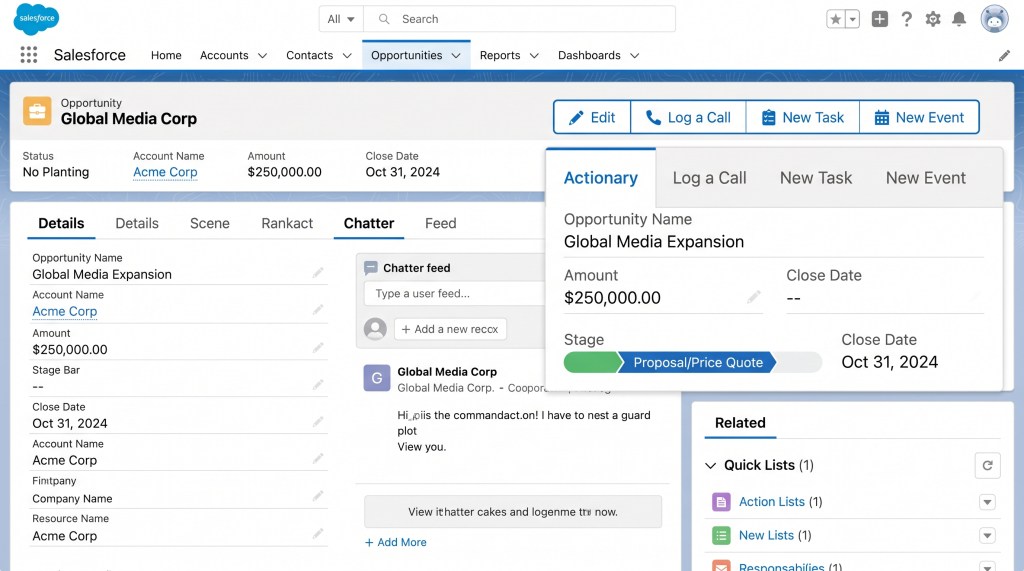
Salesforce Quick Actions — Global Actions vs. Publisher Actions (Which One Should You Use?)
If you”ve ever watched a Salesforce user navigate three separate screens just to log a simple phone call, you know the pain. The “Quick Actions” feature was built to kill that friction — but it”s also one of the most misunderstood tools in the platform.
The problem isn”t that Quick Actions don”t work. It”s that most admins don”t know when to use which type. Let”s fix that.
What Are Salesforce Quick Actions?
Quick Actions let users create records, log activities, or update fields — all from one click, right where they”re already working. No page loads, no screen flips. They appeared in Summer “13 and have been quietly saving clicks ever since.
There are three flavors:
- Global Actions — Available from the global “Quick Action” menu in the header. Not tied to any record.
- Object-Specific Actions — Tied to a specific object (Account, Opportunity, etc.). Show up on the record detail page.
- Publisher Actions — Lightning-only. Live in the Chatter publisher on record pages. Replace the old Salesforce Classic publisher.
Each has a job. The mistake is treating them as interchangeable.
When Each Shines
Global Actions: For Non-Record Tasks
Need a user to create a task or log an event without being on a specific record? That”s what Global Actions are for. They live in the top-right global menu and don”t assume any parent context.
Example use case: A support rep needs to log a personal reminder about a follow-up training session. She clicks the global “+” from anywhere in Salesforce, selects “Task,” and types it up. No record context needed.
Data point: According to Salesforce”s Winter “26 release notes, Global Quick Actions support up to 20 fields per action on standard objects, up from 15 in previous releases.
Object-Specific Actions: The Workhorses
These are your bread and butter. Attached to the record detail page, they carry the current record”s context. When a user clicks “Log a Call” from an Account record, the action already knows which Account it”s for.
Example use case: Your sales team logs calls on Opportunities. Set up a “Log a Call” object-specific action with the Opportunity ID pre-populated. The rep clicks once, enters the duration, and saves — the call count on the Open Activity related list updates immediately.
Publisher Actions: The Lightning Upgrade
Publisher Actions sit inside the Lightning Chatter publisher. They”re the modern replacement for the Classic publisher area. If you”re still on Classic, you get one text area with a few buttons. Lightning gives you a flexible, position-aware action bar.
Example use case: A team lead needs to quickly post a Chatter update AND log a milestone on a Case. Publisher Actions put both buttons side by side — one click, no dropdown hunting. The order and grouping are configurable in the Publisher Layout.
Step-by-Step: Creating a Global Quick Action
- Navigate to Setup > Object Manager > [Your Object] > Buttons, Links, and Actions.
- Click “New Action” and select “Global Action” for the type.
- Choose the target object (e.g., Task, Event, or a custom object).
- Configure the field layout. The user will only see the fields you add here.
- In the Publisher Layout for the global layout, check “Override the standard actions with the selected Quick Action.”
- Assign to profiles or permission sets via the Quick Action’s visibility settings.
What Nobody Tells You
Permission Quirks
Quick Actions inherit the user”s FLS (Field-Level Security) and object permissions. If a user can”t see a field on the detail page, they won”t see it in the Quick Action form either. But here”s the kicker: Quick Actions bypass page layouts for field display. So even if a field isn”t on the record layout, it can show up in the Quick Action if FLS allows it. This trips up most admins at least once.
The “New Task” Trap
Salesforce ships a standard “New Task” action on most objects by default. It overwrites the Object-Specific Action you might have built. If you”ve defined a custom “Log a Call” action but the system”ss default “New Task” sits above it in the publisher, users will click the wrong one every time. Remove the standard action or suppress it per profile.
Lightning vs. Classic
Publisher Actions only work in Lightning. If you”ve got users in both, build Object-Specific Actions (which work in both) and set the Publisher Layout specifically for Lightning users. Global Actions? Same behavior in both — those are safe.
Pre-Field Updates
Quick Actions can pre-populate field values via Predefined Field Values. This is huge. Want every Task created from the Case page to automatically have a specific subject line? You can set that. Want every Event to default to a 30-minute duration? Done. But — these values are overridable by the user. If you need enforcement, you need a Flow or Apex trigger.
Pro Tips From the Trenches
- Group actions in the Publisher Layout by frequency. The three most-used actions go first, less-used get collapsed under “More Actions.”
- Use “Log a Call” instead of the generic “New Task” for phone-heavy teams. It includes duration and description fields by default.
- Don”tt put more than 6 fields on a single Quick Action. At that point, you”re back to a full-page experience — you killed the speed benefit.
- Check the “Override the standard action” checkbox on Publisher Layouts. It”s unchecked by default and silently causes the system default to take priority.
- Test with a limited-access profile before rolling out. FLS + permission sets + Quick Action visibility = three layers that can all fail independently.
Honest Limitations (When NOT to Use Quick Actions)
Complex Multi-Step Flows: Quick Actions let you create records and log activities. That”s it. If you need a multi-step guided process (create an Opportunity, assign tasks, send an email), build a Screen Flow and launch it from a Quick Action instead. Quick Action + Flow is a powerful combo — the Quick Action is the trigger, the Flow is the logic.
Validation Rules: Quick Actions run through standard record creation. Validation rules fire. If you”ve got complex validations that need UI context the action doesn”t provide, users will hit errors.
Large Data Sets: Quick Action forms load metadata from the target object. On objects with hundreds of fields or complex formula dependencies, the form can lag. Keep the field count low.
Reporting: Actions created via Quick Actions have no special “source” indicator. You can”t easily report on “Tasks created via Quick Actions vs. standard page.” If you need this, set a default value on the Task that flags it.
Decision Framework
| Situation | Best Choice |
|---|---|
| User needs to act from anywhere in Salesforce | Global Action |
| Action belongs to a specific record | Object-Specific Action |
| Users are in Lightning, action goes in Chatter area | Publisher Action |
| Mixed Lightning/Classic user base | Object-Specific Action (works in both) |
| Action is a custom Screen Flow launch | Publisher Action (in Lightning) or custom button (Classic) |
Bottom Line
Quick Actions aren”t new, but they”re still underused. Most orgs run the defaults — “New Task,” “New Event,” “Log a Call” — and call it done.
Take 30 minutes. Audit your Publisher Layout. Check which Global Actions exist. Ask your power users what they click most. Then strip everything else out.
Your users will notice. Nobody ever complained about fewer clicks.
Contact MotionDog to audit your Salesforce setup for Quick Action optimization and CRM performance improvements.


Leave a Reply